Tuesday, July 30, 2013

HOW TO Post a picture in Your Blogs ?

HOW TO Post a picture in Your Blogs ?

You can upload photos to your blog(s) by clicking the image icon in the Post Editor's toolbar.
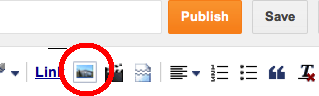


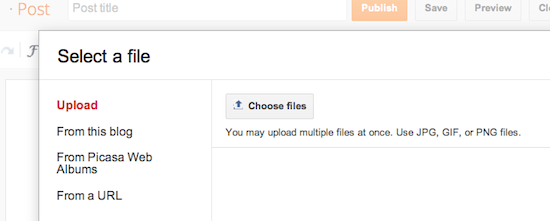
When you click this icon, you'll get a window that allows you to select an image or multiple images from your computer. Click the Choose files button to locate the ones you want. Alternatively, you can add an image you've previously used on your blog, an image from your Picasa Web Albums, or enter the URL of an image that's already online and insert it into your post. You can upload images in JPG, GIF, PNG, TIF or BMP format.
 
 
Once the image is in your Post Editor, you can click on the image to format it in your post.
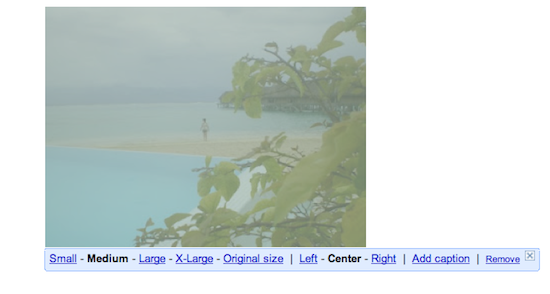
 
The left, centre and right options determine how the text of your post flows around the pictures. The size options let you scale the pictures to different sizes within the posting area. Note that the picture will still be uploaded in its full size; this option just determines how it's scaled within the content of your post. You also have the option to add a caption to your image.
 
Alternatively, you can post images to your blog using Mail-to-Blogger. This feature allows you to email posts with image attachments directly to your blog. For more information about Mail-to-Blogger,
 

Limits on photos

When you upload an image through Blogger, it gets stored on Picasa Web Albums, and is therefore subject to the quota limit on your account there. You can sign in there with your Google Account to access all your images. The Picasa Web Albums Help Centre has more information about free storage limits and limits on image size. If you have recently upgraded your quota limit, you may have to sign in to your PWA account in order for the new storage quota to be reflected on Blogger.
 
Courtesy - Blogger.com
 

Monday, July 29, 2013

HOW TO INCLUDE YOUR PHOTO IN GOOGLE SEARCH RESULTS


How to include your Photo in Google search results


To add an photo to Google Images search results, the first step is to add your photo to a website along with a descriptive text for your image. While you can’t directly upload images into search results, many searchable images that are posted on a website can be added to our search results. Just like Google does for WebPages, Google Images crawls the web for pictures to include in its results.


How to Add your Photo in the Internet so that Google could able to search or Crawl it ?

Upload Your Photo to a Blog or Website

If you want that your photo or picture or image to appear in Google Images search outcomes , You have to upload your photo or picture to a blog or on a website or on Google + Profile or blogger Profile. In case if you do not have or own a blog , then, you have to use some free content hosting services as detailed below:

ü  You can upload your photo in Google+

ü  You can upload your photo in Blogger

ü  By using Google services , you can create your own Google Website with your photo on it.


2.     Make sure the image you post is public and searchable

By posting the image on a public and searchable website, you'll make it possible for Google to find your image and add it to the Images index. When you upload the image, make sure that the webpage containing your image is publicly accessible. For example, if you posted the photo on Google+, make sure the privacy setting was Public. For more tips on posting on a site that Google will crawl, read about adding a site to Google.

While creating the hyperlink to your Google Profile page, do remember to add rel=”me” to the link as shown below (or see the source of my bio page).

<a href="https://profiles.google.com/your_ID"rel="me">My Profile</a>

Step 2: Next you need to ensure that all the blog stories that you have written include a link to your “About Me” page.  This hyperlink should have the rel=”author” attribute as shown below (or see the sidebar of this page for an example).

<a href="http://yourwebsite.com/about/"rel="author">My short bio</a>

Step 3: This is the last step. Sign in to your Google Profiles account and under links, add a new custom link that points to your “About Me” page. Tick the option that says “This page is specifically about me” and save the changes.

That’s it. Wait for Google to re-crawl your new content and then test your links. Open the rich snippets tool and copy-paste the URL of one of your recent stories in the preview box. If the results say verified author (see the next screenshot), you are all set.


Saturday, July 20, 2013

How to add your photos to appear in the Google Searches

How to add your photos to appear in the Google Searches


If  you have a single author blog, Google has now provided a simpler method to verify your authorship by verifying your email address with Google.


This method will only verify you for content on a site that has the same domain name as the email address you submit.

In other words, if your blog is on www.Google.com, you can verify your authorship for content on that site with an email address that ends in @gmail.com.
  • Create a Google+ Profile if you don’t already have one (see Step #1 above).


  • Enter your email address in the blank and click the signup button.

  • Make sure all your content has a byline in the form “By Your Name” (e.g., By Mark Traphagen). This must exactly match the name on your Google+ profile.

  • Google will automatically add a link back to your site in the “Contributor to” section of your Google+ profile. They will also add the email address you submitted as a work email address in your profile. If you don’t want that address visible to the public, edit your profile, click on the section where the address shows, and change the privacy setting.
  • Perform Step 5: Confirm Your Authorship Link from the main instructions above to verify that Google is correctly linking your content to your author profile on G+.
-

HOW TO CLOSE THE UNRESPONDING FIREBOX BROWSER

While Using the firebox , certain times , firebox wont cooperate and will not close . As a result , you will receive the following message .


Firebox is already running , but not responding . To Open  a new window , you must first close the
Existing Firebox Process , or restart your systems


To end the Firebox Process , you can do the following steps:

End Firefox processes

If Firefox did not shut down normally when you last used it, Firefox might still be running in the background, even though it is not visible. Restart your computer to see if the problem goes away.
Instead of restarting your computer, you can also use the Windows Task Manager to close the existing Firefox process:
  1. Right-click on an empty spot in the Windows task bar and select Task Manager (or press Ctrl+Shift+Esc).
  2. When the Windows Task Manager opens, select the Processes tab.

    Task Manager
  3. Select the entry for firefox.exe (press F on the keyboard to find it) and click End Process.
  4. Click Yes in the "Task Manager Warning" dialog that appears.
  5. Repeat the above steps to end any additional firefox.exe processes, if more than one entry is found, then exit the Windows Task Manager.
  6. Start Firefox normally.

HOW TO USE FIRE-BOX ADDON TO CONVERT YOUTUBE INTO MB 3 AND DOWNLOAD THE SAME IN TO YOUR COMPUTER , MOBILE


HOW TO ADD-ON IN FIRE-BOX for Converting Youtube into MB 3 and to download the same into your computer

With the help of Firefox add-on which makes MP3 downloading simple, by opening a dedicated toolbar button which you can toggle on and off, then downloading MP3s to your computer when activated.


Please click the following link:

https://addons.mozilla.org/en-us/firefox/addon/youtube-mp3-download-1/